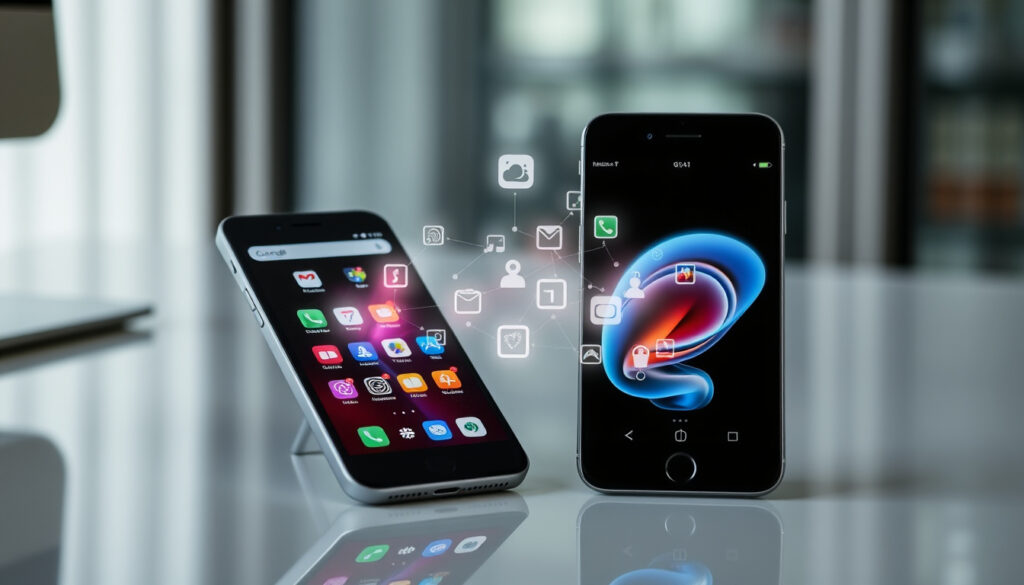
How to Transfer Data from One Phone to Another – Android and iPhone Guide
Switching to a new phone should feel like moving to a new home, not losing everything you own. Yet countless users delay upgrading because they worry about losing contacts, photos, messages, and app settings. The good news is that modern smartphones make data transfer far simpler than it used to be. Whether you are moving between Android devices, staying within Apple’s ecosystem, or crossing from one platform to another, there are reliable methods available for every situation.
This guide walks through each transfer method step by step. You will learn which cables or apps work best, what data transfers automatically, and what might need extra attention. Preparation steps help ensure the process goes smoothly, and a troubleshooting section addresses the most common problems people encounter. By the end, you will know exactly how to move your information safely to your new device.
How to Transfer Data from Android to Android
Moving data between Android phones works differently depending on your device brands and Android versions. Google offers built-in tools, while manufacturers like Samsung add their own options. Understanding these choices helps you pick the fastest and most reliable method for your situation.
Wireless Transfer Methods
Most Android phones support wireless data transfer through Quick Share (formerly Android Beam) or similar manufacturer-specific tools. Samsung devices use Quick Share, while other brands may call it something different. This method works well for users who prefer not to handle cables.
To begin a wireless transfer, make sure both devices have Wi-Fi and Bluetooth turned on. Keep them within close range throughout the process. The sending device typically opens the share menu, selects the content type, and chooses the receiving device from a list of nearby options.
On Samsung phones, you can adjust who can send files to you by going to Settings, then selecting Quick Share. Choosing “Everyone” makes discovering your device easier, while “Contacts only” adds a layer of privacy.
Samsung Smart Switch
Samsung Smart Switch provides one of the most comprehensive transfer options for Samsung users. The app handles contacts, messages, photos, videos, calendar events, alarms, memos, call logs, and even wallpapers. It works whether your old phone runs Android or iOS.
For wireless transfer, install Smart Switch on both devices from the Google Play Store. Open the app on the old phone, select “Send data,” then choose “Wireless.” Your new Samsung phone appears as a destination when connected to the same Wi-Fi network. Select it and pick the content you want to move.
The cable method transfers more data types and often completes faster. Connect the phones using a USB cable or adapter, open Smart Switch on the old device, and follow the on-screen prompts. Samsung provides detailed instructions for both wired and wireless transfers at their official support page.
Google One and Cloud Backup
Android phones automatically back up data to your Google Account when enabled. To check your backup status, go to Settings, then Google, then Backup. You can see what gets saved, including app data, call history, contacts, messages, and photos or videos (if set to backup over Wi-Fi).
When you set up a new Android phone, sign in with the same Google Account used on your old device. During the setup process, the phone offers to restore your apps, settings, and data from the cloud backup. This works well for contacts and app preferences but may not transfer everything stored locally on the old phone.
| Data Type | Google Backup | Smart Switch (Samsung) | Quick Share |
|---|---|---|---|
| Contacts | Yes | Yes | Yes |
| Messages | Yes | Yes | Yes |
| Photos and Videos | Only backed up copies | Yes | Yes |
| Apps and Settings | App data and preferences | Yes | No |
| Call History | Yes | Yes | No |
| Wallpapers and Wi-Fi passwords | No | Yes | No |
How to Transfer Data from iPhone to iPhone
Apple users have several options for moving data to a new iPhone. The methods vary in speed and comprehensiveness, so understanding each helps you choose the right approach for your needs. Direct device-to-device transfer works for most users, while iCloud serves those without a cable or who prefer wireless setup.
Quick Start: Direct Transfer
Since iOS 12.4, Apple has offered direct transfer between iPhones without requiring an intermediate backup. This method uses a secure Wi-Fi connection between the two devices and typically transfers everything in one go.
Begin by placing both phones near each other. Turn on your new iPhone and follow the initial setup steps until you reach the Quick Start screen. A prompt appears offering to set up the new device from your current iPhone. Place your old phone on top of the new one, aligning the viewfinder circles on both screens. Follow the prompts to authenticate, then choose what you want to transfer. The process continues automatically while both phones stay connected.
iCloud Backup Restore
If you prefer not to use Quick Start, iCloud backup provides an alternative. First, back up your old iPhone by going to Settings, tapping your name, selecting iCloud, then iCloud Backup, and finally choosing Back Up Now. This stores your data in Apple’s cloud, including photos in iCloud Photos, device settings, app data, messages, and more.
When setting up your new iPhone, choose “Restore from iCloud Backup” during the Apps & Data screen. Sign in with your Apple ID, select the most recent backup, and wait for the transfer to complete. A Wi-Fi connection remains necessary throughout, and the restore can take anywhere from minutes to hours depending on your backup size.
Apple’s official documentation covers both backup methods in detail at their iPhone transfer support page.
iCloud offers 5 GB of free storage, which may not hold all your data if you have many photos and videos. Consider deleting unnecessary files or purchasing additional iCloud storage before backing up to avoid incomplete transfers.
What Transfers Automatically
The iPhone transfer process covers most user data comprehensively. Contacts, calendars, photos, messages, app data, and settings move over automatically. Health data, voice memos, and information stored in apps like Notes transfer as well.
Some items do not move during the initial transfer. Apple Watch pairings need to be set up again with the new phone. HomeKit accessories may require reconfiguration. Apple Pay cards need to be added again on the new device, even though the card numbers remain the same.
How to Transfer Data from Android to iPhone
Crossing from Android to iPhone used to require complicated workarounds, but Apple now offers a dedicated app called Move to iOS. This tool handles the bulk of your data and works without a computer, though you need patience as the process can take time depending on how much data you have.
Using the Move to iOS App
Download Move to iOS from the Google Play Store onto your Android device. During the initial setup of your new iPhone, when you reach the Apps & Data screen, select “Move Data from Android.” A code appears on your iPhone screen.
Open Move to iOS on your Android phone, enter the code shown on the iPhone, and connect both devices to the same Wi-Fi network. The app then transfers your data in stages, beginning with your Google Account information, contacts, message history, photos and videos, mail accounts, and calendars. It can also move certain free apps already available on iOS.
Keep both devices plugged in and leave them alone until the transfer completes on the iPhone. Do not use other apps or answer calls on the Android device during this time, as interrupting the connection may cause problems. Detailed instructions appear in Apple’s official support documentation.
Before transferring from Android to iPhone, you must turn off iMessage on your old Android device. Failure to do this results in messages from iPhone users being routed incorrectly, potentially leaving you unable to receive texts after the switch. Go to Settings, then Messages, and toggle iMessage off.
What Will Not Transfer
Several important categories do not move during the standard Android-to-iPhone transfer. Paid apps and their associated purchases do not transfer, though you can re-download them from the App Store if you bought them before. In-app purchases similarly remain tied to the Android version of each app.
Your Google Account passwords and saved login information do not transfer. Safari bookmarks from Android browsers will not appear on the iPhone. Health data, voice memos, alarms, and eSIM information all remain on the Android device. Files stored locally on your Android phone also require manual transfer through other means.
Alternative Transfer Methods
For users with large photo libraries, a computer-based approach may work better. Copy photos to a computer using a USB cable, then transfer them to the iPhone through Finder (on Mac) or iTunes (on Windows). This bypasses cloud storage limits and preserves original quality without compression.
Samsung Smart Switch also supports transferring data from Android to iPhone. This option works well for Samsung users who already have the app installed. Connect the devices with a cable, select iPhone as the destination, and choose which content to move.
How to Transfer Data from iPhone to Android
Moving from iPhone to Android involves fewer official tools than the reverse direction, but Google has simplified the process significantly. Two primary methods exist: a dedicated app for wireless transfer and a cable-based option for faster, more comprehensive results.
Google Switch to Android App
Google’s Switch to Android app handles wireless transfer for most data types. It requires Android 12 or later on your new device and iOS 15 or later on the iPhone. Both devices must connect to the same Wi-Fi network throughout the process.
Install Switch to Android from the Google Play Store on your iPhone. During your new Android phone’s initial setup, the option to copy from iPhone appears when you reach the appropriate screen. Follow the prompts, and the app on your iPhone generates a code. Enter that code on the Android device to establish the connection. For those looking to upgrade, the Samsung Galaxy A36 5G Ireland price is a key consideration. Samsung Galaxy A36 5G Ireland price
The wireless method transfers contacts, photos, videos, calendar events, and some free apps. It also moves your Google Account settings, making the Android setup faster. More details on compatibility and supported data types appear in Google’s official transfer guide.
Cable Transfer for Comprehensive Results
The cable method transfers more data types than wireless and often completes faster. You need a USB-C to Lightning cable or appropriate adapter to connect the iPhone directly to your Android device.
Connect the cable between both phones before beginning setup on the Android. When prompted on the Android screen, select iPhone as the source and follow the on-screen instructions. The iPhone may ask you to trust the connected device—tap Accept to continue.
After connecting, sign in with your Google Account on the Android phone when prompted. This step matters because calendar events, notes, and WhatsApp chats require the Google Account to restore properly. Keep both devices physically connected throughout the entire process and remain nearby to enter your PIN if requested.
According to Google’s documentation, the cable method transfers more data types than wireless, though the exact list of supported content varies by Android manufacturer. More information about the specific capabilities appears in Google’s Switch to Android page.
Ensure your iPhone runs iOS 15 or later and your Android device has Android 12 or later installed. Older versions may not support the transfer tools, limiting what data can move across platforms.
Data That Remains Behind
Regardless of which method you choose, substantial data stays on the iPhone. Photos and videos stored in iCloud require separate transfer through iCloud.com or by downloading to a computer first. Paid apps and their purchases, in-app purchases, and app-specific data do not move across platforms.
Login credentials saved in Safari, health data from Apple Health, voice memos from the Voice Memos app, alarms, and any eSIM information all remain on the iPhone. You will need to recreate alarms manually and set up eSIM again on your Android device through your carrier.
What Happens to Your Old Phone After Transfer
One of the most persistent myths about data transfer is that it erases the source phone. In most cases, transferring data does not remove anything from your old device. The process copies information to your new phone, leaving the original data intact on the device you are moving away from.
This means you can verify that everything transferred correctly before doing anything with your old phone. Check that contacts appear, photos show up in your gallery, messages have moved, and apps function properly on the new device. Only after confirming a successful transfer should you consider what to do with the old phone.
Once satisfied with the transfer, you have several options. You can keep the old phone as a backup device, give it to a family member, sell it through a trade-in program, or recycle it through an electronics disposal service. Before selling or trading in the device, perform a factory reset to remove all personal data. Go to Settings, find the reset option, and select “Erase All Content and Settings.”
After a factory reset, both Android and iPhone require you to sign out of associated accounts before the device can be used by someone else. This security feature prevents thieves from using stolen phones, so factor this into your timeline if selling or giving away the device.
How Long Does Phone Data Transfer Take?
Transfer times vary significantly based on the amount of data, the method chosen, and the speed of your connection. A transfer with minimal data over a fast connection might complete in fifteen minutes. A large library of photos and videos over a slower Wi-Fi connection could take several hours.
Wireless transfers generally take longer than cable-based methods. The distance between devices, interference from other wireless signals, and network congestion all affect wireless speed. Cable connections provide more stable throughput, especially for large files like video libraries.
- Charge both devices fully before starting the transfer
- Connect to the fastest available Wi-Fi network
- Keep devices within close proximity throughout the process
- Do not use either phone for other tasks during transfer
- Remain present to respond to any authentication prompts
Set aside sufficient time rather than rushing the process. Interrupting a transfer midway can cause incomplete data migration or require starting over. Most users find that an evening or several hours of inactivity provides enough buffer for even large transfers to complete successfully.
What Experts Say About Phone Data Transfer
Both Google and Apple publish detailed transfer documentation, reflecting how important this process has become for users upgrading devices. Google’s Android support team emphasizes preparing both devices before starting and keeping them connected throughout the process. Apple’s documentation highlights the Quick Start feature as the recommended method for iPhone-to-iPhone transfers, citing its simplicity and comprehensive coverage.
Carrier support teams frequently encounter transfer-related questions, with Verizon and other providers offering their own guides that cover cross-platform scenarios in detail. Samsung’s support pages go further, noting that Smart Switch can bridge gaps when moving from iOS to Android, though the process may not transfer every data type perfectly.
Transfer reliability depends heavily on following preparation steps. Devices that have been charged, connected to stable Wi-Fi, and left undisturbed during the process show significantly higher success rates than those where users attempt to multitask.
Industry guidance from mobile carrier support documentation
Third-party tech publications consistently recommend the official apps from Apple and Google as the most reliable options. While third-party transfer apps exist, they often introduce compatibility issues or fail to transfer all data types. Sticking with manufacturer tools reduces the chance of problems and ensures consistent support if something goes wrong.
Key Points to Remember
Phone data transfer has become streamlined, but success still depends on preparation and understanding what each method does and does not transfer. Official tools from Apple and Google handle most common scenarios well, covering contacts, messages, photos, and calendar data reliably.
Cross-platform transfers require more attention than moving between devices of the same platform. Apps, passwords, health data, and purchase history often do not move automatically when switching between Android and iPhone. Plan to spend time reinstalling apps and setting up accounts on your new device after the initial transfer completes.
Your old phone retains its data after transfer. Take time to verify everything arrived correctly before wiping or disposing of the device. Check our guide to finding the best phone deals if you are planning an upgrade soon.
Frequently Asked Questions
Can I transfer only my photos and contacts without moving everything?
Yes. Most transfer tools let you select which content categories to move. During the transfer setup, look for checkboxes or a selection screen where you can choose contacts, photos, videos, messages, or other specific types. You can transfer photos separately through cloud services like Google Photos or iCloud if you prefer.
Is there a free way to transfer data between phones?
All official methods from Apple and Google are free. Move to iOS, Switch to Android, Quick Start, Smart Switch, and cloud backup options cost nothing to use. You only pay if you exceed free cloud storage limits and need additional space.
Will my WhatsApp chats transfer to my new phone?
WhatsApp offers its own built-in transfer feature that works within and across platforms. On Android, you can transfer chat history to another Android phone during setup. Cross-platform transfers to iPhone are supported but require the iCloud app installed on Android and sufficient iCloud storage.
Do I need a computer to transfer data between phones?
No. All transfer methods described in this guide work directly between phones without a computer. The only time you might use a computer is for manual photo transfer or if official tools are not available for your specific situation.
What should I do if the transfer fails?
Restart both devices and attempt the transfer again. Ensure both phones stay connected to Wi-Fi throughout the process. For Android to iPhone transfers, also try forgetting Wi-Fi networks in Settings, then reconnect and retry the process. If problems persist, check that your devices meet the minimum version requirements for the transfer app.
Can I use mobile data instead of Wi-Fi for the transfer?
Most official transfer methods require Wi-Fi rather than mobile data. The connection between devices happens locally over Wi-Fi, and using mobile data can interfere with the process. Connect both phones to the same Wi-Fi network for best results.
More related posts
 How to Check Oil: Proper Steps for Accurate Level Reading
 La Marzocco Coffee Machine: Price, History, and Is It Worth It
 Landman (TV Series) – Plot, Cast, Episodes and Reviews
 10 Pounds in Euro: Current GBP to EUR Conversion
 Ennis Road Medical Centre: Address, Reviews, Phone Limerick
 Average House Price Ireland – 2024 Figures by County and City
 Oh My Street Food Dublin: Menu, Hours, Reviews Westmoreland
 Translate Italian to English: Tools, Slang & Idioms Guide